
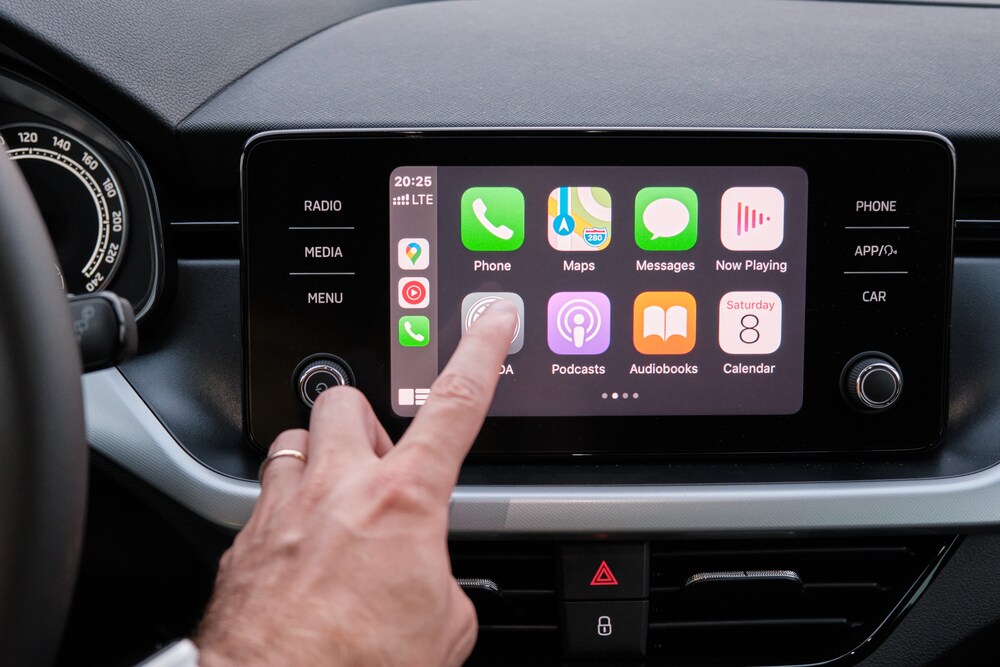
Apple CarPlay is one of the most sought-after features in new vehicles today. It comes standard in new Lincoln models, including the Lincoln Aviator, and is readily available in vehicles equipped with SYNC 3 and SYNC 4. With apps for entertainment, navigation, and more, Apple CarPlay makes both daily driving and long road trips safer and more enjoyable.
The friendly team at Bay Lincoln, serving the Panama City area, is here to assist you with any questions about setting up Apple CarPlay through your Lincoln SYNC system.
Easily Set Up Apple CarPlay in Your Lincoln
The steps for setting up Apple CarPlay vary depending on whether your Lincoln has the SYNC 4 or SYNC 3 system.
For Lincoln Vehicles with SYNC 4 (Wireless CarPlay)
Many new Lincoln models, such as the latest Lincoln Corsair and Lincoln Navigator, offer wireless Apple CarPlay. This setup requires you to first pair your iPhone via Bluetooth:
- On the SYNC 4 screen, select Phone, then Add Phone.
- On your iPhone, go to Settings and tap Bluetooth.
- Look for your vehicle's name in the discovery list.
- A Bluetooth Pairing Request will appear on your iPhone; confirm the PIN and tap Yes on the SYNC screen prompt.
- When prompted with “Allow Contacts and Favorites Sync?” choose Pair to download your iPhone contacts to your Lincoln's SYNC system.
- Tap Allow.
- Shortly after, your Lincoln will ask: “Use CarPlay with SYNC 4?” Tap Enable.
- Apple CarPlay should now launch on your infotainment screen.
Alternatively (if already paired):
- Ensure your SYNC screen is on and select the Settings icon.
- Choose the Phone List option.
- Select your iPhone.
- Select Enable.
For Lincoln Vehicles with SYNC 3 (Wired CarPlay)
If your Lincoln has the SYNC 3 system, you will need an Apple Lightning cable:
- Enable Siri in your iPhone settings.
- Connect your iPhone to your Lincoln’s USB port using the Lightning cable.
- Select Continue on the SYNC screen.
- The first time you use it, you must agree to the terms and conditions.
- Tap Allow to finalize the setup.
Benefits of Apple CarPlay
Apple CarPlay seamlessly integrates your iPhone with your Lincoln's hands-free system, providing access to essential apps. You can:
- Control music and access playlists or radio channels.
- Utilize navigation tools like Apple Maps.
- Manage phone calls and receive text messages hands-free.
- Access Siri through your SYNC infotainment system.
CarPlay apps can run simultaneously, allowing you to control music while viewing navigation on the SYNC screen.
Key Information:
- Lincoln models from 2017 and newer support CarPlay.
- CarPlay does not require a separate vehicle data plan, though using your phone's data can improve the connection.
Get Assistance with Apple CarPlay at Bay Lincoln
Setting up Apple CarPlay in your Lincoln is a simple way to stay connected, entertained, and focused on the road. By following the steps outlined in this guide, you can access your favorite apps, navigation, music, and messages directly from your Lincoln’s infotainment system, making every drive safer and more enjoyable.
If you need assistance or want a hands-on demonstration, visit Bay Lincoln in Panama City, FL. Our knowledgeable team is ready to help you get the most out of your Lincoln’s technology and ensure your Apple CarPlay experience is seamless from day one.
If you are looking to upgrade your vehicle to a new Lincoln, view our online inventory of new Lincoln vehicles and then stop by our showroom in Panama City, FL!
Categories:
Apple CarPlay in Your Lincoln